
Video Meeting - Meeting
Innometrics EnterpriseCommunication
4.219.00 Reviews
- Version
- 1.1.6
- Installs
- 50.00K
- Age Rating
- Everyone
Screenshots


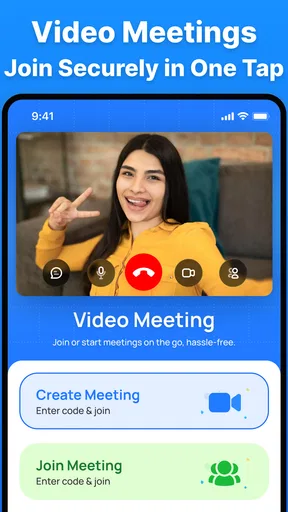
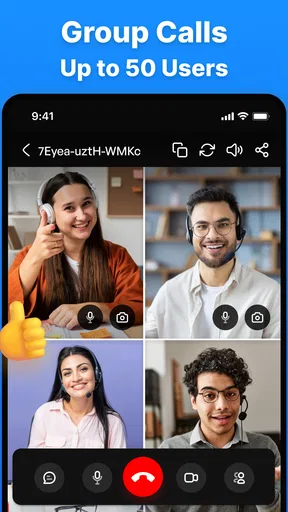
Our Review of Video Meeting - Meeting
 Analysis by Appyee
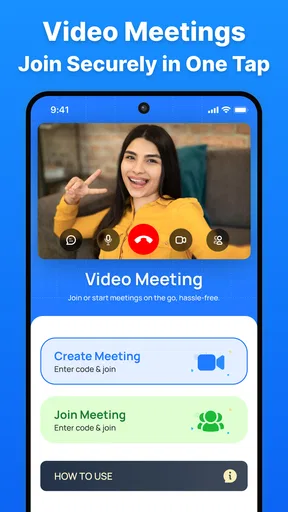
Video Meeting - Meeting is the kind of communication app I would try when I need a straightforward video call rather than a large collection of collaboration tools. I found its appeal easy to understand: it focuses on meetings, supports one-to-one conversations and team calls, and is available free of charge. That narrow purpose can be useful when the usual alternatives feel overloaded with chat channels, calendars, file storage, and workplace administration.
My overall impression is positive but measured. The app has an average rating of 4.2 from around 50 ratings, and more than 10 thousand people have installed it. Those figures suggest a small but reasonably encouraging user base rather than a mature platform with years of broad adoption. It comes from Innometrics Enterprise, is suitable for Everyone, and its current version is 1.1.6. I would treat it as a practical option for simple remote conversations, while remembering that a focused meeting app may not replace a full business communication suite.
Starting with a simple meeting routine
The best way to use Video Meeting - Meeting is to keep the first workflow uncomplicated. I would open it before a scheduled conversation, check that the intended meeting space is ready, and avoid changing several things at the last moment. For a quick family call, a tutoring session, or a small team check-in, that basic habit matters more than collecting every possible option.
The store summary highlights secure video meetings, HD calls, team meetings, and one-to-one conversations without time limits. In practical terms, that makes the app attractive for conversations that should not be interrupted simply because a session has reached a preset duration. A volunteer group discussing an event, for example, can continue until the decisions are finished instead of watching a countdown while someone is still speaking.
I would still prepare the surroundings rather than assuming the app can solve every meeting problem. A stable connection, a quiet room, and a camera positioned at eye level make a bigger difference than switching between meeting services. If I were joining from a phone, I would also place it on a stand or lean it securely against something, because holding it for a long conversation quickly becomes tiring and makes the image less steady.
For a one-to-one call, the experience is easiest to judge. There are fewer voices to manage, so I can concentrate on whether the picture remains clear, whether speech feels natural, and whether joining is comfortable for the other person. This is where the app makes the strongest case for itself: a direct conversation does not need the administrative weight of a large enterprise platform.
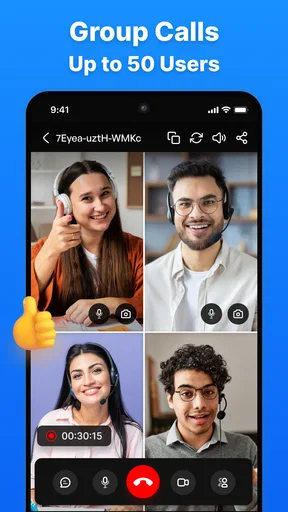
Team meetings require a little more discipline. I would send participants the meeting details early, agree on who is leading the conversation, and ask people to mute themselves when they are not speaking if background noise becomes distracting. These are not glamorous tricks, but they prevent a focused meeting app from being blamed for problems caused by an unstructured group.
The right everyday scenario
Imagine a small project team preparing a community presentation. One person is at home, another is travelling, and two others are in separate offices. They need a conversation that may run longer than a short catch-up, but they do not need a permanent chat workspace or a complicated project dashboard. I would use Video Meeting - Meeting for the discussion, keep the agenda in a separate document, and write down decisions immediately afterward.
That separation is one of my useful habits with this app. I would not expect the meeting itself to become the project archive. A dedicated note, shared document, or email summary is still better for tracking responsibilities. The app handles the live conversation; another tool handles the memory of what was agreed. Keeping those roles separate makes the meeting less cluttered and reduces the temptation to search through old conversations later.
The same approach works for remote lessons, informal interviews, family conversations, and small club meetings. It is less convincing for a conference involving a large audience, a formal webinar, or a company that needs a deep record of attendance and follow-up. In those cases, a more established platform with specialized administration may be the safer choice.
Settings I would check before inviting anyone
I would begin with the camera and microphone rather than exploring every screen. Before an important call, I want to know which camera is active, whether the microphone is receiving my voice, and whether the app is using the right audio route. This is especially important on a phone connected to wireless headphones, because the device can sometimes switch between its built-in microphone and the headset in an unexpected way.
Next, I would check the video quality expectations. The app promotes HD calls, but a high-quality image depends on the camera, lighting, connection, and device. I would sit facing a window or lamp instead of placing a bright light behind me. If the connection is weak, I would prioritize understandable speech over a perfect picture. That trade-off is more useful than insisting on the highest visual quality in every situation.
Privacy deserves a deliberate check too. The app presents itself around secure meetings, which is reassuring for ordinary conversations, but I would still use sensible meeting habits: share joining information only with the intended participants, avoid discussing highly sensitive material in a public place, and confirm who is present before starting. A security label should encourage care, not replace it.
I would also look at the app’s access needs when installing it and review the visible permission prompts instead of accepting them automatically. Camera and microphone access are central to a video meeting, but I prefer knowing exactly when they are requested and which device is being used. On a shared phone or tablet, I would be particularly careful about signing out or closing the app after a confidential call.
Because the application supports Android 8.0 and later, it is usable on a broad range of older Android devices. That is helpful for families or small organizations that cannot replace every phone at once. However, compatibility does not guarantee an equally smooth experience on every older handset. Limited processing power, an aging battery, or a weak front camera can still affect a long call, so I would test the actual device before relying on it for a formal meeting.
The application was released on October 17, 2025, which gives it a relatively recent place in the communication landscape. I see that as a reason to keep expectations realistic. A newer app can feel clean and focused, but organizations may want to observe how consistently updates arrive and how well the product fits their longer-term routine before moving important meetings away from an established service.
Small habits that make calls faster
Experienced users do not necessarily spend more time inside meeting settings. They build a repeatable sequence. My preferred sequence would be: prepare the room, open the app, check audio, confirm the camera, join early, and keep the meeting notes outside the call. Repeating those steps removes the frantic setup that often makes video meetings feel harder than they are.
I would also create a personal pre-call checklist in a notes app. It could contain only a few reminders: charge the device, connect the preferred headset, close unrelated audio apps, and keep the meeting details nearby. This is a non-obvious advantage of a focused app: because it does less outside the call, I can design my own surrounding workflow without trying to manage an entire office inside one service.
For recurring team calls, I would use the same opening pattern every time. The organizer can state the purpose, confirm the expected finish, and identify the first speaker. Participants can then join knowing how the conversation will run. The app’s lack of time limits is useful here, but it should not become an excuse for meetings to drift. Unlimited duration is a safety net, not a meeting plan.
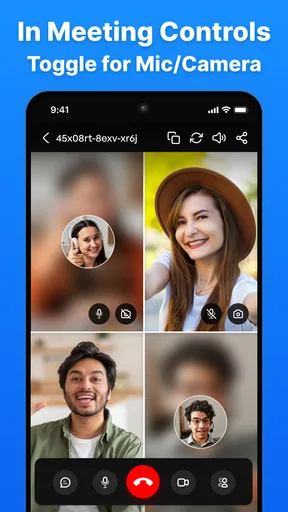
When I am the participant rather than the organizer, I would join with the microphone ready to mute and keep a written question list beside me. That makes it easier to contribute without interrupting. If the app offers the basic controls I need on my device, this habit reduces the number of times I have to search around the screen during the discussion.
Another practical pattern is to separate important calls from casual calls. For a sensitive work conversation, I would use headphones, verify the room, and summarize decisions afterward. For a relaxed family chat, I would accept a simpler setup and focus on keeping the conversation natural. Treating every call like a formal conference creates unnecessary friction; treating every work call casually creates avoidable mistakes.
Where the focused approach reaches its limits
The app’s main strength is also its main limitation. It is centered on video meetings, so I would not choose it expecting the broader ecosystem found in services that combine persistent messaging, calendars, cloud files, recordings, attendance reports, and extensive administrative controls. If my team already lives inside such a platform, moving only the video portion elsewhere could create extra links, extra reminders, and a fragmented record of work.
I would also be cautious when a meeting requires more than conversation. A design review may need dependable screen sharing, collaborative whiteboards, file exchange, or a searchable history. A training session may need structured participant management. A public event may need broadcasting tools. Unless those capabilities are clearly available and tested in the exact version I am using, I would not build a critical event around assumptions.
The same caution applies to large groups. A small team can agree on mute etiquette and speaking order, but a much larger audience needs moderation, roles, and reliable control. Video Meeting - Meeting may be a sensible choice for a manageable group, yet a specialized webinar or enterprise meeting service could be better when the organizer must control many participants at once.
There is also a practical support question for organizations. A free app is appealing for experimentation and small groups, but a business may need documented procedures, centralized account management, or a clear process for handling technical issues. I would test the app with a non-critical meeting first, ask participants how easily they joined, and check whether the workflow fits the organization before making it the default service.
Compared with ordinary phone calls, the app adds visual context and makes remote teamwork feel more personal. Compared with messaging apps that happen to include video, it offers a more meeting-focused destination. Compared with full collaboration suites, it is likely to feel lighter and less distracting, but it may leave more work to the user. That trade-off is not automatically good or bad; it depends on whether I value simplicity more than an all-in-one workspace.
Who should use it, and who should skip it
I would recommend trying Video Meeting - Meeting if you need free video communication for one-to-one calls or small team conversations, especially when avoiding time restrictions matters. It also suits people who prefer a dedicated meeting tool instead of opening a large work platform filled with features they rarely use. The Everyone age rating makes it approachable for a broad audience, although adults should still guide younger users toward sensible privacy and sharing habits.
I would be more hesitant to recommend it as the only communication system for a large company, a public event organizer, or a team that depends heavily on integrated documents and persistent chat. Those users should compare the complete workflow, not just the quality of the call. A service that stores conversations, manages calendars, and supports formal administration may save more time overall, even if its interface feels heavier.
Before committing, I would run a short trial with the real devices and the real participants. Test joining from an older Android phone, try the preferred headphones, check the lighting, and simulate the busiest expected meeting. This is more informative than relying on a rating alone. The app’s 4.2 average is encouraging, but a small user community cannot predict every network, device, or organizational setup.
My verdict after building a repeatable routine
Video Meeting - Meeting works best when I treat it as a focused doorway to a conversation, not as a complete office replacement. Its free access, one-to-one and team orientation, HD calling goal, and no-time-limit positioning give it a clear reason to exist. The experience becomes more dependable when I pair it with simple habits: test audio early, use a stable device position, share meeting details carefully, and keep notes in a separate place.
I like that the app can fit a small group without demanding a complicated setup. I also appreciate the possibility of using it for a longer discussion without watching the clock. At the same time, I would not choose it blindly for large, highly managed, or document-heavy meetings. The lighter approach means I may need other tools around it, and that extra coordination is the price of keeping the meeting experience focused.
For someone asking me whether to install it, my answer would be conditional but favorable: try it for a real low-risk call and see whether its direct workflow matches your needs. If you want a simple meeting app that stays out of the way, it deserves consideration. If you need an entire collaboration system with advanced administration, a more established all-in-one alternative will probably be the better fit. For everyday conversations and small team calls, though, I can see myself recommending it as a practical, uncluttered option.
In the end, the most important feature is not a hidden shortcut or a complicated setting. It is the way the app fits into a repeatable routine. When I prepare the device, keep the agenda clear, and understand where the app stops, Video Meeting - Meeting does its job well. That honest boundary is what makes Video Meeting - Meeting useful: it focuses on bringing people together, while leaving the rest of the workflow in my hands.
Privacy and Permissions
See what permissions an app requests and how it handles your data.
- Calendar
- read calendar events plus confidential information, add or modify calendar events and send email to guests without owners' knowledge
- Phone
- read phone status and identity
- Camera
- take pictures and videos
- Microphone
- record audio
- Wi-Fi connection information
- view Wi-Fi connections
- Device ID & call information
- read phone status and identity
- Other
- view network connections, pair with Bluetooth devices, full network access, change your audio settings, draw over other apps, control vibration, prevent device from sleeping, Google Play license check
Verdict
Strengths of Video Meeting - Meeting
- Simple interface makes starting or joining meetings quick.
- Supports group calls for remote work, classes, and casual conversations.
- Useful chat features help participants share messages during meetings.
- Meeting links make it easy to invite people without complex setup.
- Works well for users seeking a lightweight video conferencing option.
Limitations of Video Meeting - Meeting
- Call quality may depend heavily on network speed and device performance.
- Some advanced collaboration tools may be limited or unavailable.
- Background noise can affect conversations without strong audio controls.
- Large meetings may feel less manageable than on established platforms.
- Privacy details and data-handling policies should be checked before use.
Similar Picks in This Category
View All
Google Messages
Google LLC4.6

Gmail
Google LLC4.1

Google Meet
Google LLC4.4

Google Chrome
Google LLC4.1

WhatsApp Messenger
WhatsApp LLC4.6

Carrier Services
Google LLC4.2
Frequently Asked Questions
What is Video Meeting - Meeting, and what can I use it for?
Video Meeting - Meeting is a communication app designed for joining or hosting online video conferences from a mobile device. It can be useful for remote work, online classes, group discussions, interviews, and casual conversations. Depending on the meeting setup, users may be able to communicate through video, voice, and text chat while participating from different locations.
Do I need to create an account before joining a meeting?
The account requirements can vary depending on how the meeting is organized and which version of the app you are using. Some meetings may allow participants to join through an invitation link or meeting code, while other features may require registration. Before downloading, check the meeting invitation and the app’s current requirements so you know whether an email address, password, or profile is necessary.
Does Video Meeting - Meeting require a strong internet connection?
Yes, a stable internet connection is important for a smooth experience. Video calls use considerably more data and bandwidth than audio calls, so weak Wi-Fi or an unreliable mobile network may cause delays, frozen video, dropped calls, or reduced image quality. If your connection is limited, turning off your camera or using audio-only mode may help improve stability.
What permissions does the app need on Android or iOS?
For video conferencing to work properly, the app may request access to your device’s camera and microphone. It may also request notifications so you can receive meeting alerts or invitations. You can review and change these permissions in your phone’s settings. If camera or microphone access is denied, you may still be able to join, but other participants might not see or hear you.
Is Video Meeting - Meeting free to download and use?
The app may be available to download at no initial cost, but the exact features and limitations can depend on its current version, platform, and meeting service. Some functions could include usage limits, advertising, optional purchases, or subscription-based tools. Review the Google Play Store or Apple App Store listing before installing, especially if you plan to use the app regularly for work or education.
